
Under Customer/Debtor or Vendor/Creditor , you can view/create/edit Contacts for each Customer/Creditor by selecting the Contacts button on the ribbon.

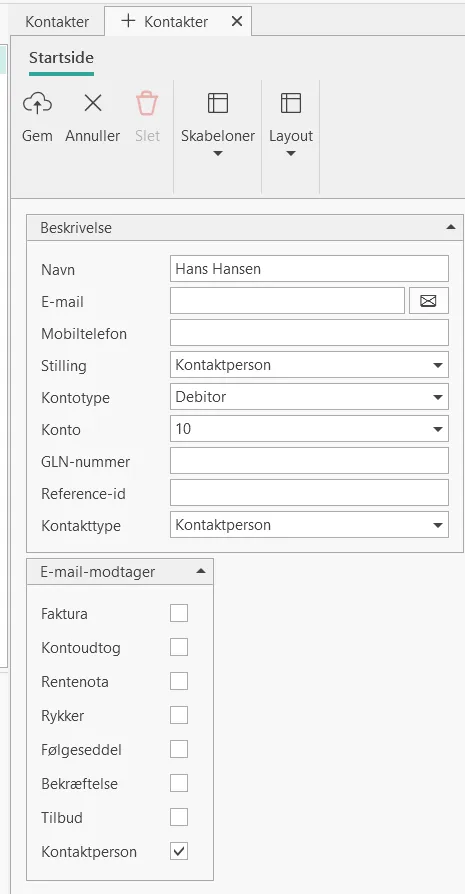
Description of fields
Selected fields are described below
| Field | Field description |
| Position | Job titles that can only be Changed by Uniconta Ltd. |
| Contact type | Same list as job titles. A combination of position and contact type can now be made. For example, Manager and Owner. |
| Reference ID | Used for UBL when trading with municipal institutions. |
| E-mail recipient | Set a check mark next to the Documents to be sent to the email address specified on the current Contact. If you place a checkmark next to the Contact person field, then all documents will be sent to that Contact person if the Contact person is selected on sales documents, regardless of the checkmarks placed next to the individual document names. Invoices = The Contact receives all Invoices to this Customer Account statement = The Contact receives all Account statements for this Customer Interest note = The Contact will Receive all interest notes to this Customer Collection Letters = The Contact receives all reminders to this Customer Delivery note = The Contact receives all delivery notes for this Customer. Confirmation = The Contact will Receive all Confirmations to this Customer Quotation = The Contact receives all Quotations for this Customer Contact person = The contact person receives all documents, i.e. Quotations, Order confirmations, Delivery notes and Invoices, if the contact person is selected on Quotations and Orders to the customer. Example 1: Example 2:
|

Account statements and Invoices to be sent to different email addresses
If desired, it can be done like this:
1) Leave the field Email for {0} Invoice on the debtor card empty
2) Check the field Send e-mail on the debtor card
3) Create a contact name e.g. with the name Invoice. Enter the email address to receive Invoices in the Email field and set a checkmark in the field Invoice
4) Create another contact e.g. with the Name Account statement. Enter the email address for Account statements in the Email field and set a checkmark in the Account statement field.
Invoices, Order confirmation and Delivery notes should be sent to both the Customer and a specific Contact.
If this is desired, proceed as follows:
1) Leave the field Email for {0} Invoices on the debtor card empty.
2) Check the field Send e-mail on the debtor card.
3) Create your Customers as a Contact, for example “Michael”. Enter Michael’s email address and check all Document types that he should receive.
Invoice account with Contacts
If you use an invoice account and want to send a copy of the invoice to the delivery account, you can use contacts.
A contact must be created under the delivery account, and this contact must be created with an email Address and a check mark in Contact person.
When creating a Sales orders for the delivery account, remember to select its Contact person in the Contacts field in the order header.
An email will now be sent to both the delivery account and the invoice account when documents generated by this sales order are sent.
Why are my documents being sent to a specific contact person?
If you have created a contact where you have only marked the Contact field in the “E-mail recipient Crate”, then this contact will receive all documents shipped from the quote/order if this contact is selected in the Contact field on the quote/order.
Load more about this under the description of E-mail recipient above.
Why does my contact person get all the emails?
Documents such as Invoices, quotes, Order confirmations, reminders, etc. are always sent to the email address specified in the Email for Invoices field on the Customer, but these documents are also sent to the Contacts created under the Contacts button on the ribbon on the Customer overview.
Load more about this under the description of E-mail recipient above.
Contact is created upon receipt of UBL Order.
If you Receive an Order via UBL, and the Contact person on the Order is automatically created in the Customers contact, the Contact person field will be Set.
This means that this contact will receive a copy of all documents sent from Uniconta. If you do not want this, you need to create a default value on the contact person screen where you deselect this checkbox.
If you want to create this default value, do the following:
- Go to {0} Companies
- Click Add Record
- Select the F12 key on your keyboard
- Click on the small black arrow from where it says ContactClient
- Click Add Record
- Select GetEmailIfContact (Contact)
- Click Save and close the tab.
The next time you Receive a UBL Order, the contact person will be created, but without a check mark in Contact, and no Documents will be Sent to this contact person.
This can be used with debtors who have a different billing account than where the order comes from.


