
In Entries, you can see an overview of all the entries you have made in the accounts across all accounts.
Please note – By default, Uniconta calculates a start date based on a calculation of the number of entries in the displayed table – press F oxygen to view all changed or periods.
Description of the buttons on the ribbon
Description of the buttons on the ribbon under Transactions
| Button | Button description |
| Filter | Filter the record overview, for example, if you only want to see records for a specific date range, account, etc. Read more about the filter function here . Note! By default, only records for the last 12 months are shown. |
| Clear filter | Clear the filter if you have created filters that you want to reset again. Read more about the filter function here. |
| Current year | Only entries for the current year will be shown. |
| Last year | Only entries for last year will be shown. |
| Physical voucher | See the physical attachment associated with the entry. You can also click the clip icon on the transaction lines if you have the clip column visible. |
| Voucher transactions | Shows all entries in the selected transaction, i.e. entries posted in the same accounting journal with the same document number and date. Under Voucher transactions it is possible to Edit the Posted transactions etc. Read more about the options for editing the entries below.  |
| Account transactions | Shows all Account transactions in the Account on the current line. |
| Posted entries | Shows all entries posted with the same posting number. |
| Posted by | Shows who has posted the current entry. |
| Layout | Add filters, delete filters and move filters around during Transactions using the Layout button. Read more about this Functions here . |
| Physical voucher | Attach or remove an attachment mm Read more about physical vouchers here . |
| Edit records | Described further down in the article. |
| Copy lines to a journal | The Copy lines to a journal button can be selected both under Transactions and under Voucher transactions. Select which draft the records should be copied to, whether to reverse the sign, whether the records should be assigned a new date, a quick text or a new text when copied to the selected draft. Note! All lines of the current screen are copied to the selected journal. |
| Show amount in a currency (Converted) | Shows all posting amounts in new field ‘Converted’ in a different currency. |
Description of “fields”
Below is a description of a selected felt
| Field | Field description |
| Invoice | The field updated with the invoice number of the posted entry. Note! When posting purchase invoices, only invoice numbers up to and including 9 characters are stored in this field. That is, if a purchase invoice number is longer than 9 characters, then this field is left blank on the transaction. |
| Origin | This field will be filled in when Uniconta creates an automatic entry. The field will be filled in with a text that shows the origin of the transaction. This allows the transaction trail to be followed precisely. |
| Changed | When using the menu ” Edit ” under ” Voucher transactions ” has made a change to an entry, it will be written in the log. The changed field on the entry will now indicate that changes have been made to the entry. |
Edit Transactions
Posted transactions posted from the financial journal can be edited using the Edit postings button on the ribbon in the Voucher transactions screen.
ATTENTION: Changes can only be made if the entry is in an open accounting period and/or is not related to an item reconciled in the bank reconciliation .
The changes made to the posted entries are recorded in the overview under General ledger/Audit activities/Log file for modified transactions.
It is not possible to undo e.g. a cancellation, deletion etc. If a deletion is undone, the item must be posted again. If a record has had an account changed and this is undone, then the account must be changed again.
Note! It is not allowed to make all types of changes to an appendix, unless it has been posted via a posting journal. For example, if you try to change the date on the records created based on a posted sales invoice, you will get the error message: Cannot cancel other vouchers from modules other than finance.
In this case, you need to delete the voucher/invoice and repost the sales invoice.
Entries changed via this function are marked as changed via the field Changed .
| Menu item | Menu item description |
| Cancel voucher | The selected record/transaction is cancelled. That is, an additional item similar to the original is posted, only with the reverse sign. |
| Delete | The entire voucher for the selected item with the same bookkeeping number is deleted. For guidance on hidden entries, read here: Posted Journals Finance – Uniconta and Log file for modified transactions – Uniconta It is not always possible to delete records that are both in Finance and in Customer and/or Vendor. For example, if the date in Finance and in Vendor, for example, do not have the same date, the record cannot be deleted. Full Accounting year rights are required to be able to delete records. |
| Invert sign | The sign is reversed on the selected record/transaction. That is, the items in the transaction that were posted in debit are moved to credit and vice versa. |
| Change dimension/account | Change dimension e.g. department on a booked item and/or change account. You can select All lines in the prompt that appears when changing the dimension, so the change can be made on all lines in the transaction at once. The account is only ever changed on the line that is selected when you select Change dimension/account, regardless of the selection in the All lines field.  If dimensions are not worked with in the accounts, then the dimension fields will not be visible in the prompt that appears. If you want to change from a debtor collective account or creditor collective account to a financial account, the voucher must either be deleted or posted back, as debtor/creditor items are not removed. |
| Change of debtor/creditor | Change the debtor/creditor on the selected record/transaction. That is, if you have posted a payment from a debtor to your bank account, but have had it registered on the wrong customer, then with this button you can change the customer. Note! Only transactions with originals from a posting journal that you can change the debtor/creditor on. You will therefore not be able to change the debtor on, for example, an invoice posted via the order module. If this is what you want to do, then a credit note and a new invoice must be posted to the real debtor. |
| Edit text | Change the text on the selected record/transaction, e.g. if you made a spelling mistake or posted the record with completely incorrect text. In the prompt, you can choose whether to change the text on the selected line or on all lines of the current record/transaction. If the text is linked to a debtor/creditor entry and you choose to change the text on all lines, it will also change on the debtor/creditor entry. If the debtor/creditor entry has a reference to a project, it will also change in the project. Since finance does not have a reference to the project, the project will only be changed when you have a vendor. |
| Edit reference | Change the reference of the selected record/transaction. |
| Changing the date | Correct the date on the selected record/transaction, for example if you accidentally posted the record in the wrong month. |
| Remove VAT | Remove the VAT on the selected item/transaction, e.g. if you have entered the item with VAT when it should have been entered without VAT, or should have been entered with a different VAT. |
| Add VAT | Add VAT to the selected item/transaction, e.g. if you have accidentally posted the item without VAT when it should have been posted with VAT. |
| Change of quantity | Change the quantity on the selected record/transaction, e.g. if you accidentally posted the record with incorrect quantity or completely without quantity. Note! It is only possible to post with quantity on financial items if the Use ‘number’ in the financial items are marked under Company/Company information . |
| Changing the amount | Correct the amount of the selected item/transaction, e.g. if you have posted the item with an incorrect amount. Version-94 When editing a multi-line voucher, a screen with all the voucher’s entries is displayed. The voucher must be in balance before editing multiple lines can be saved. 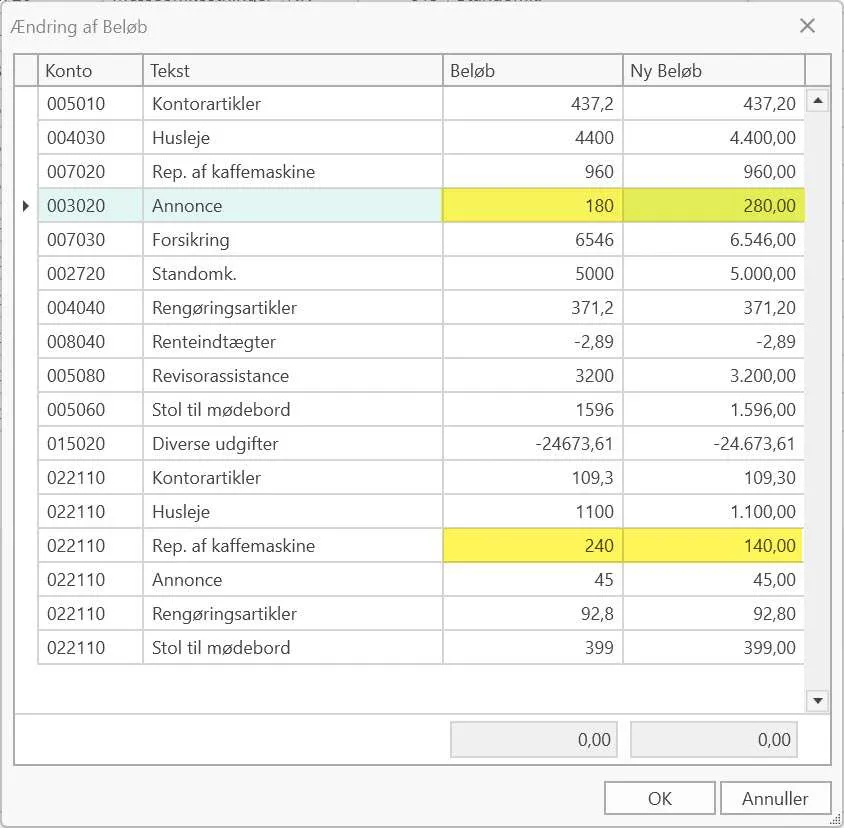 It is not recommended to change amounts if currency is involved. |
| Changing currency amount | Version-94 Change the currency amount of the selected item/transaction, e.g. if you have posted with an incorrect currency amount. |
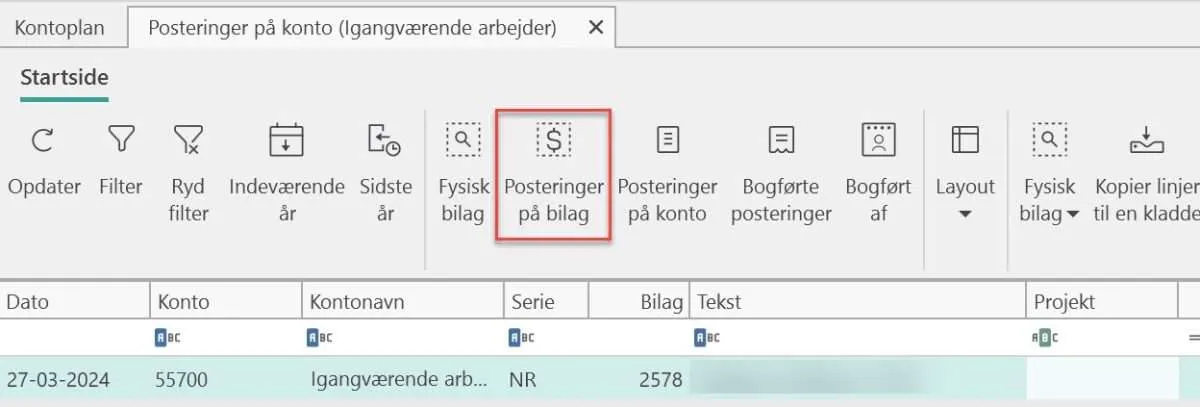
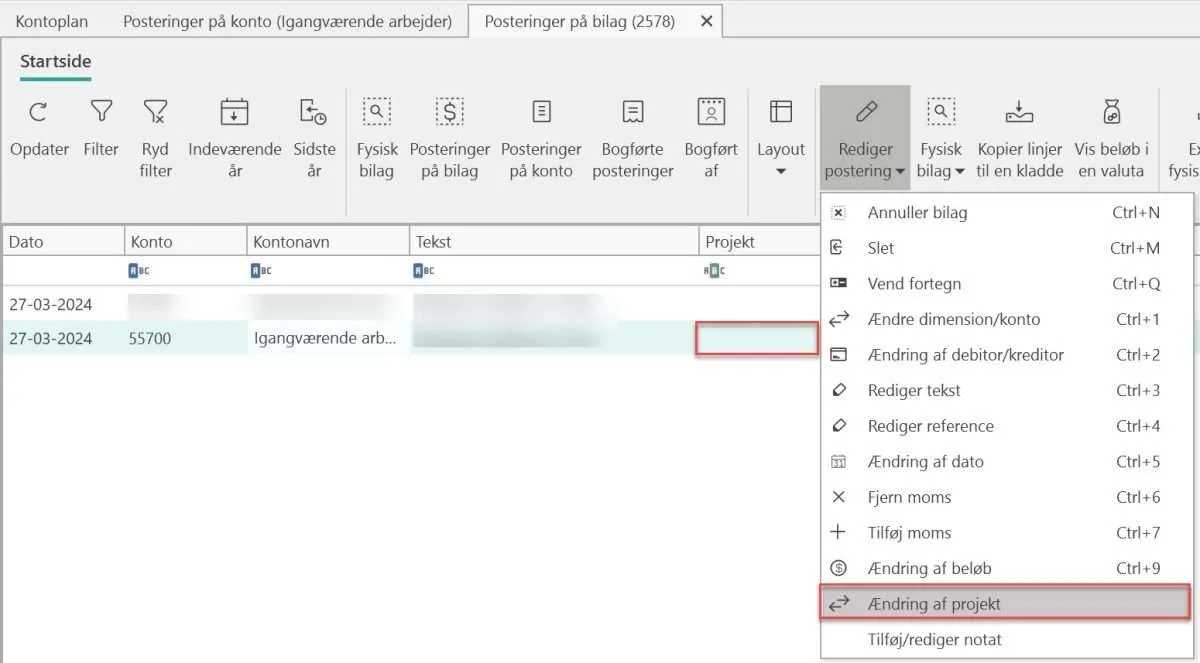
| Changing the Project | If this function is selected, a project number can be added or edited on the record. Please note that this function does not correct anything on the project. It is only a financial correction that is used to refer a missing reference to a project. The correction is made as follows. Find the item you want to change. Tap entries on vouchers.
Select change project.
Enter the project number. The change is made.
|

| Origin of the product | Description of the product |
| Duty | If a transaction of generated by a tax. This will occur when using the tax module in the warehouse, for example |
| Customer | If a transaction of generated by a movement on the customer. This will occur by, for example, invoicing from the sales module, or posting against a customer via the general journal |
| Distribution | If a transaction of generated by a This will occur, for example, in the case of |
| Incoming mothers | If a transaction of generated by a deferred input tax. This will occur, for example, in the case of By purchase or crediting, either made through the purchasing module or posting in a general journal. |
| Indkøb | If a transaction of generated by a purchase. This will occur, for example, in the case of When invoicing from the purchasing module, or posting in a general journal. |
| Cost price regulation | If a transaction of generated by a cost adjustment. This will occur, for example, in the case of When calculating cow prices at the inventory. |
| Vendor | If a transaction of generated by a movement on the creditor This will occur by, for example, invoicing from the purchasing module, or posting against a creditor via the four-man journal. |
| Lager, access | |
| Counterposted moms | |
| VAT rounding | |
| Retained result | |
| Accrual | |
| Opening Balance | |
| Production, departure | |
| Production, approach | |
| Project procurement | |
| Rabat | |
| Sales | |
| Addendum | |
| Outgoing mothers | |
| Cost of Goods Sold | |
| Change in cost price |


