
Go to Lager/Warehouse draft
Select the inventory draft you want to enter entries in.
Read here how to create a draft…

Import from file
It is possible to import stock draft lines via Import from file – for example, a count made in Excel. The import must be set up before use.
Read about setting up a file via import here…
Copy and paste from Excel
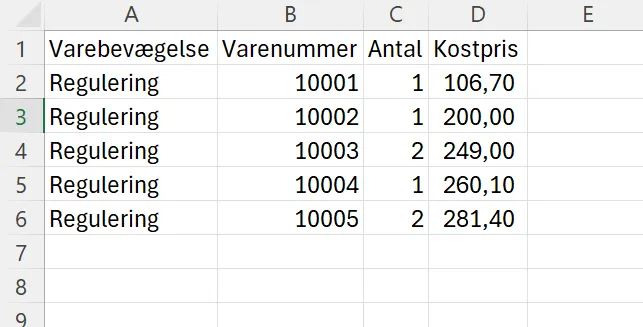
It is possible to copy data from Excel into the draft. Sometimes it may be necessary to change your data in Excel and then transfer it to the inventory draft. Here you should be aware that you need to copy both the movement type and cost price or cost value from the draft, as the item number, when inserted from Excel, does not look it up in the item overview itself.
Delete journal transactions
Delete records deletes all the records in the draft.
Entering in the draft
Select Journal lines from the Stock journal overview.
Add an entry or click F2 to create Journal lines.

If you fill in the Text field in the inventory draft, the text will be posted to the financial item.
If you have lines in the draft that you do not want to post, you can put them on hold by checking the Hold box on the draft lines.
Goods movement
In the draft line, select a Goods movement. The type is stamped down on the item entries.
ATTENTION. For all the following types of transfer to finance, if accounts are filled in the stock draft, these accounts will override the accounts in the standard setups.
ATTENTION. Transactions that are only received but not invoice received cannot be processed in the Journal. E.g. moved.
| Movement | Adjustment of inventory WITHOUT financial items. This movement type can be used for relocations, as described under the type Relocation, but without cost price. Do NOT use this type for opening stock in new accounting Most often one of the other movement types described below is used. |
| Sales | Used if you want inventory management without the use of sales orders. Debtor account can be specified in the inventory draft. A stock transaction is created and displayed on the debtor. A sale is registered with a negative number, i.e. if a piece is sold from stock, it must be noted as -1 in the draft for a sale. Posted to the accounts specified on the Item groups in the Inventory Departure fields if the Offset account (Stock journal) field is empty and a counter entry is made on Cost of Goods Sold. If the Offset account (Stock journal) field is filled in, post to this Account instead and counterpost to Cost of Goods Sold. |
| Indkøb | Used if you want inventory management without the use of purchase orders. The vendor account can be specified in the inventory draft. Batch and serial number items can be purchased via the draft and assigned an expiration date. Read more here… A stock transaction is created and displayed on the vendor. A purchase is registered with a positive number, so if you buy a piece for the warehouse, it must be noted as +1 in the draft for a purchase. Post to the accounts specified on the Item groups in the Inventory, Receipt (Stock journal) and Offset account (Stock journal) fields. If the Offset account (Stock journal) field is empty, post to Stock out instead. Note! As this will by default result in two entries on status accounts, it is recommended to manually enter the desired accounts for posting directly in the draft for purchase entries in the inventory draft, as these will always override the accounts selected on the groups. |
| Regulation | Used for periodic inventory adjustments. Do not use for movements within the warehouse. Post to the financial account with the System account type “Stock value adjustment” if such a System account has been created, alternatively post to the account in the Stock value adjustment field on the Item group and offset to the account specified on the Item group in the Offset account field (Stock journal). IMPORTANT! If the default Chart of accounts setup for system accounts is used, i.e. Account 5545 is set as the system account for inventory value adjustments and the Offset account field (Stock journal) is also filled with a current account, both Posted transactions will be posted to accounts under assets in the Chart of accounts. Therefore, for example, choose to fill in the Inventory value adjustment field in the Item groups with an operating account, or fill in the Financial account field in the Stock journal with the operating account you want to post the adjustment to. |
| Counting
| Used for inventory counting. Stock counts can be entered directly in the stock draft or via Lager/Reports/Count List and then posted to a stock draft. In the latter case, the draft lines are automatically assigned the Count type. Registered as the difference between the stock registered in the warehouse and the counted stock. Posted to the financial account with the system account type “Journals for loss/profit entry” and to the account specified on the Item group in the Offset account (Stock journal) field. If no System account is defined for loss/profit, then post to the account specified in the Loss/profit field on the Item group instead. |
| Loss/Win | Used for Loss/Win registration. A loss is registered with a negative number, i.e. a loss for the Lager, and must be noted as -1 in the Journal. A win for the Lager must be registered with a positive number, i.e. a win for the Lager, and must be noted as +1 in the Journal. Posted to the financial account with the system account type “Loss/Win entry journal” and to the account specified on the Item group in the Offset account (Stock journal) field. If no System account is defined for loss/profit, post to the account specified in the Loss/profit field on the Item group instead. |
| Obsolete | Used to adjust obsolete and discontinued items out of stock. An obsolete item is registered with a negative number, i.e. a loss for the warehouse and must be noted as -1 in the Obsolete item journal. Posted journals to the financial account with the system account type “Journal for entering loss/profit” and to the account specified on the Item group in the Offset account (Stock journal) field. If no System account is defined for loss/profit, post to the account specified in the Loss/profit field on the Item group instead. |
| Finalize | Used to finalize production BOMs. Enter the quantity to be finalized in the quantity field. |
| Included in BOM | When unfolding BOMs, the items included in the BOM are displayed with this type. |
| Opening | Used to add inventory to the warehouse in connection with a startup where finance is entered. No entries are posted in Finance for this movement type. Note Uniconta does not calculate imported inventory entries. |
| Relocation | Used to move items from one storage location and/or location to another. The item is moved with cost prices. In the Journals, fill in the To Warehouse and To Location fields with the Warehouse and Location to which the Items should be moved. In the Warehouse and Location fields, select the Warehouse and Location from which the Items should be moved. Enter +1 if you want to move 1 item to the new Warehouse/Location. You can also move between Dimensions using the From Dimension and To Dimension fields. A move will create financial entries if the Dimensions are changed. |
Opening a warehouse/how are items stocked?
When starting a warehouse, it is possible to copy/paste inventory from an excel or csv file into the warehouse.
Read more about how to import from excel here.
When importing items in stock, select ‘Opening’ in the ‘Item movement’ column under Stock / Stock journal and the ‘Journal lines’ button, as described below. No entries are Generated in General Ledger when you select ‘Opening’, as financial entries have already been made.
Example of opening
If you have your items listed in Excel or a CSV file, this must contain the following fields: (the headings must be as in the image below)
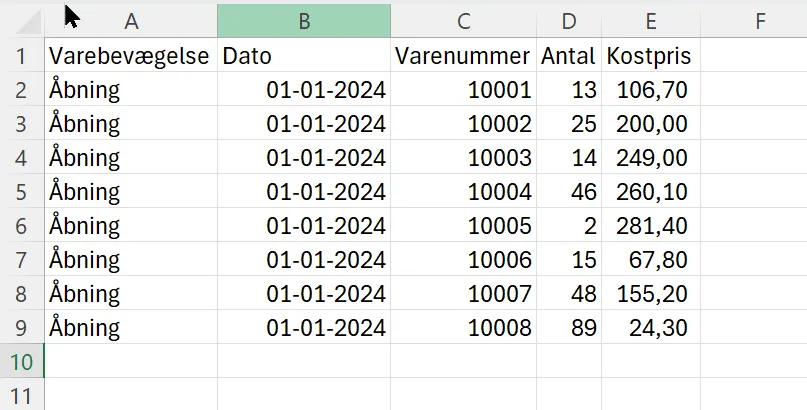
This data is selected in Excel, copied and pasted into the draft.
Post the draft and your inventory is ready to use.
Example of moving (can use motion in the same way)
It is possible to move goods between locations.
If you did not place your items at your locations in the opening, you can do so using the following example.
Here there is only one storage location, but you could also take advantage of location.

Example of Regulation/Loss/Wind
Here is an example where you want to withdraw an item from stock. For example, for internal use or as a loss.
A Stock journal must be set up under Stock/Stock journal called, for example, Loss/Win or Adjustment. Here you can select a Financial account and an Offset account for automatic posting in this Journal.
Financial accounts for Loss/Win can be set as system accounts on the chart of accounts or on the product groups.

- In Inventory draft lines, select ‘Loss/Win’ or ‘Adjustment’ as ‘Goods movement’. Now Uniconta automatically uses this‘Financial account’ and ‘Offset account‘ from the Warehouse Journal lines setup(see example 1 below, where ‘Offset account’ and ‘Financial account’ remain empty in the Journal lines fields). You can also write an Offset account and Financial account in the Warehouse draft lines and the system will overwrite the warehouse draft accounts in the warehouse draft setup (see example 2)
- In the stock draft, you enter the quantity of the item to be pulled out. It must be entered with minus ‘-‘. In this example, it’s item 20-13, which we subtract by putting ‘-1’ in ‘Quantity’. The cost price should be included here (or automatically or manually).
Example 1 – Automatically using stock draft accounts to regulate in the stock draft

Tap ‘Post draft’ and simulate postings to see the ‘Financial account’ and ‘Counter account’ accounts being used automatically.

Example 2 – Manually entering accounts in stock draft lines
You can also write a Financial account and Offset account on the inventory draft lines to overwrite the automatic inventory draft accounts setup. In the example below, the user selects Accounts 1330 (Cost of Goods Sold – Inventory module) and 5545 (Inventory adjustment) directly on the inventory draft line, which overwrites the selections in the draft setup.

Tap ‘Post draft’ and simulate postings.

General journals with Batch or serial numbers
If you want a specific item with a specific serial number or a batch item to be registered via the Stock journal, you can do this directly in the Stock journal.
Add the [Batch/Serial numbers] field and the [Item] field via Layout.
Select the item and register the Batch/Serial number you want to register.

Learn more about batch and serial numbers here.


