
Posted Journals.
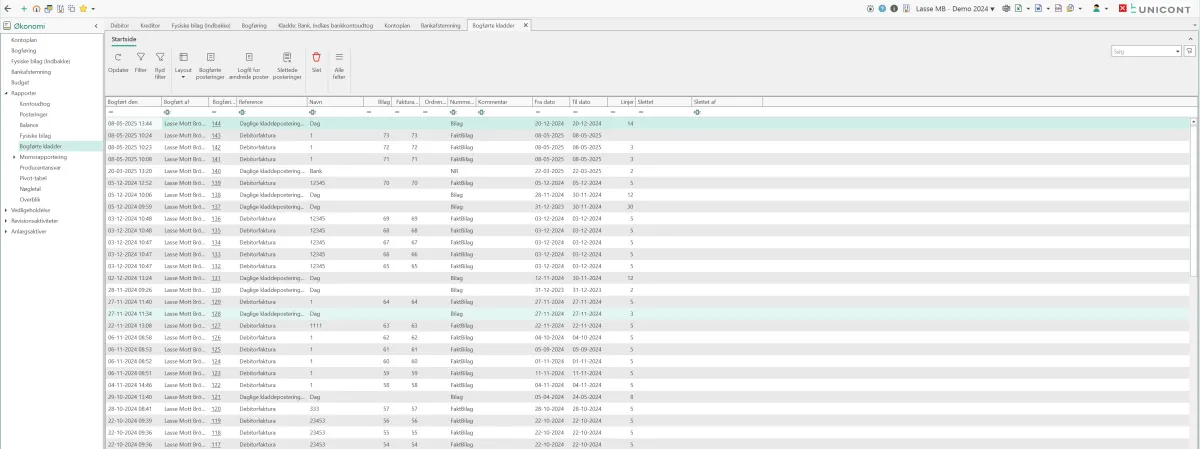
All drafts posted in Uniconta are shown here.
You can see who has posted, when it was posted, what number series it was in, what period the entries were in, whether the draft has been deleted and who deleted the draft.
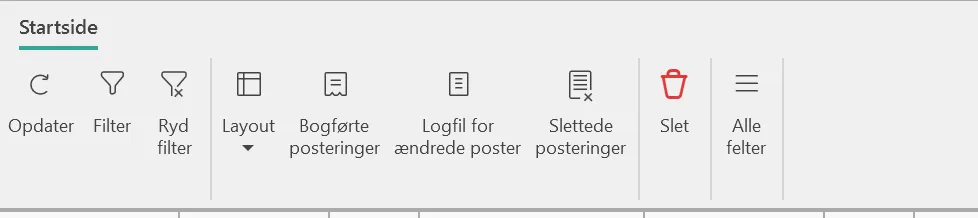
Description of buttons.
| Name | Description |
| Refresh | Refreshes the page, used to see if you have all drafts included, in case there are several users in the accounts at the same time who are posting. |
| Filters | Here you can set up different filters to get the data you want |
| Clear Filter | Here you can remove any filters set up in the screenshot. |
| Layout | Here you can Edit, Save and Delete Layout |
| Posted Entries | Here you can see which postings are in the selected draft. |
| Log file for changed records | This is a log of changed records, so if someone has corrected an entry you would see it in this log. |
| Deleted Entries | View deleted entries, it will also appear on the screen if any entries have been deleted. |
| Delete | Delete the posted draft. |
| All fields | A popup appears where you can see for all fields in the screenshot what value is in the fields, even if they do not appear in your layout. |
Description of fields.
Some of the fields are described here.
| Name | Description |
| Posted on | The date the draft has been posted. |
| Posted by | Who has posted the draft. |
| Posting number | This is a unique number and can help you find the postings you want faster. |
| Reference | Describes whether it is a draft or an invoice |
| Order number | Shows which sales order it comes from if you use sales order. |
| Number series | Describes which number series has been used. |
| From and To Date | Describes the period that the entries in the draft are within |
| Lines | Describes how many lines there are in the draft. |
| Deleted | Writes the date and time that the draft was deleted |
| Deleted by | Shows who deleted the draft |


