To access profile setup, profiles must be “Turned on” under Configure application functionality. Load more here.
Profiles with User permissions, Table permissions and Functions.
Profiles can be used with User permissions, Table permissions and Functions so that Users belonging to a Profile all get the same permission setup.
NOTE: If User permissions and Table permissions are used on profiles, the user’s User permissions under “Company/User permissions/Manage users” must be set to “No access” on all permissions except “Owner”, which must have read permissions.
If a combination is used, the User permissions under Manage users will override User permissions under Profiles and profiles will not work correctly.
Via profiles, users can get rights to.
- All screens except those selected in the profile setup. Set “Checkmark” in Udfald, which should be deselected
- Only the screens that are selected in the profile setup. There should be no “Checkmarks” in Udfald, which should be deselected
- Uniconta also operates with fixed profiles. Load more here.
It is recommended that each user is only associated with one profile.
Created the Profiles to be used in the Enterprise.
Press Add in the ribbon and give the profile a Profile name and a Name.
In Udfald, som skal fraselges, you determine whether to use Model 1 or 2. Here 2 is selected.
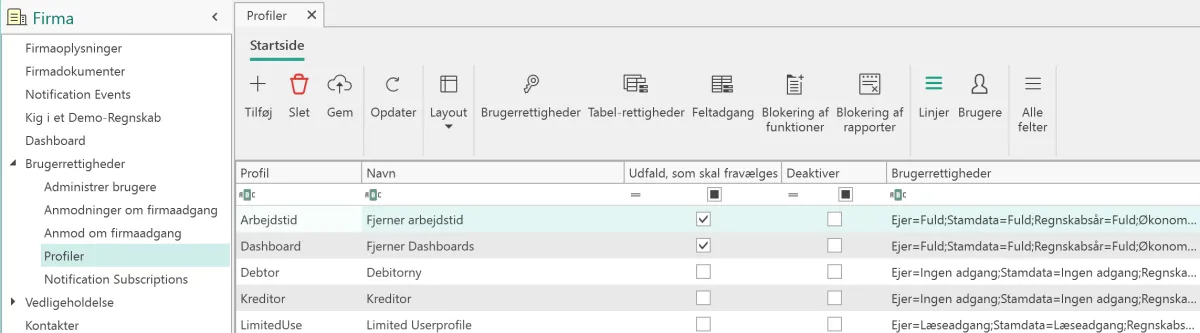
Description of buttons
Below is a description of the most important buttons on the ribbon below Profiles
| Button | Button description |
| User permissions | Used to create User permissions in a profile that can be used for multiple users, instead of having to set up the same User permissions, under Company/User permissions/Manage users, for multiple users. |
| Table rights | Used to create Table rights in a Profile that can be used for multiple users, instead of having to set up the same Table rights, under Company/User rights/Manage users, for multiple users. |
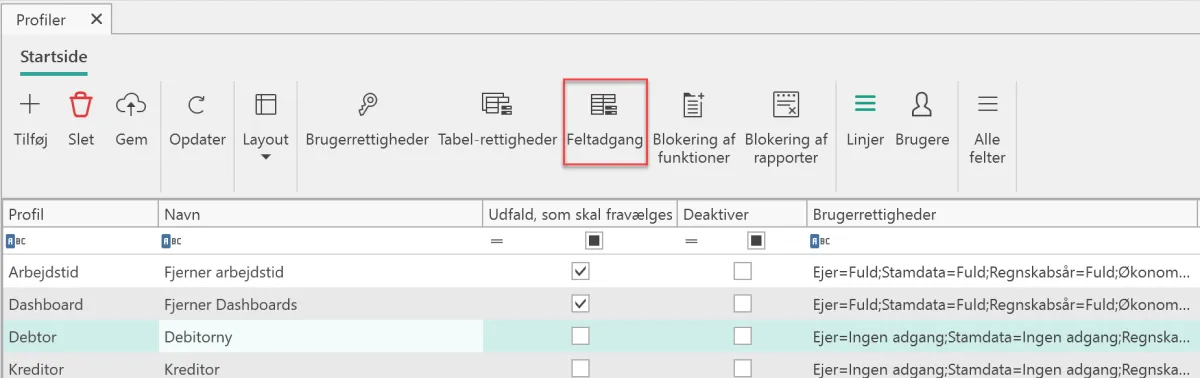
| Field access | Version-94 Used to create Field Accesses in a profile that can be used for multiple users, instead of having to set up the same Field Accesses, under Company/User rights/Administer users, for multiple users. |
| Block functions | Used by Block functions in a Profile that can be used for multiple users, instead of having to set up the same Block functions under Company/User permissions/Manage users for multiple users. |
| Block reports | Used by Block reports/Dashboards in a Profile that can be used for multiple users, instead of having to set up the same Block functions, under Company/User permissions/Administer users, for multiple users |
| Lines | Under Lines you define the Functions that the Profile may or may not have Access to, depending on whether the Outcome is set to be deselected |
| Users | Here you select the users you want to use the profile for. |
Description of fields
Below is a description of the fields for Profiles
| Field name | Field Description |
| Profile | Profile name or number |
| Name | The name of the profile. Give the profile a meaningful name. |
| Outcomes to be deselected | If you check the Outcomes to be deselected box, it means that the setup you select under this profile will not be available to the user. If you do not check the Outcomes to be deselected box, it means that the setup you select under the profile will be the only thing the user can see. |
| Disable | If a Profile is not to be used, but you don’t want to Delete it either, you can disable it by checking the Disable field. |
| User permissions | Views the current User permissions for the set up Profiles. |
Management of user rights on profiles.
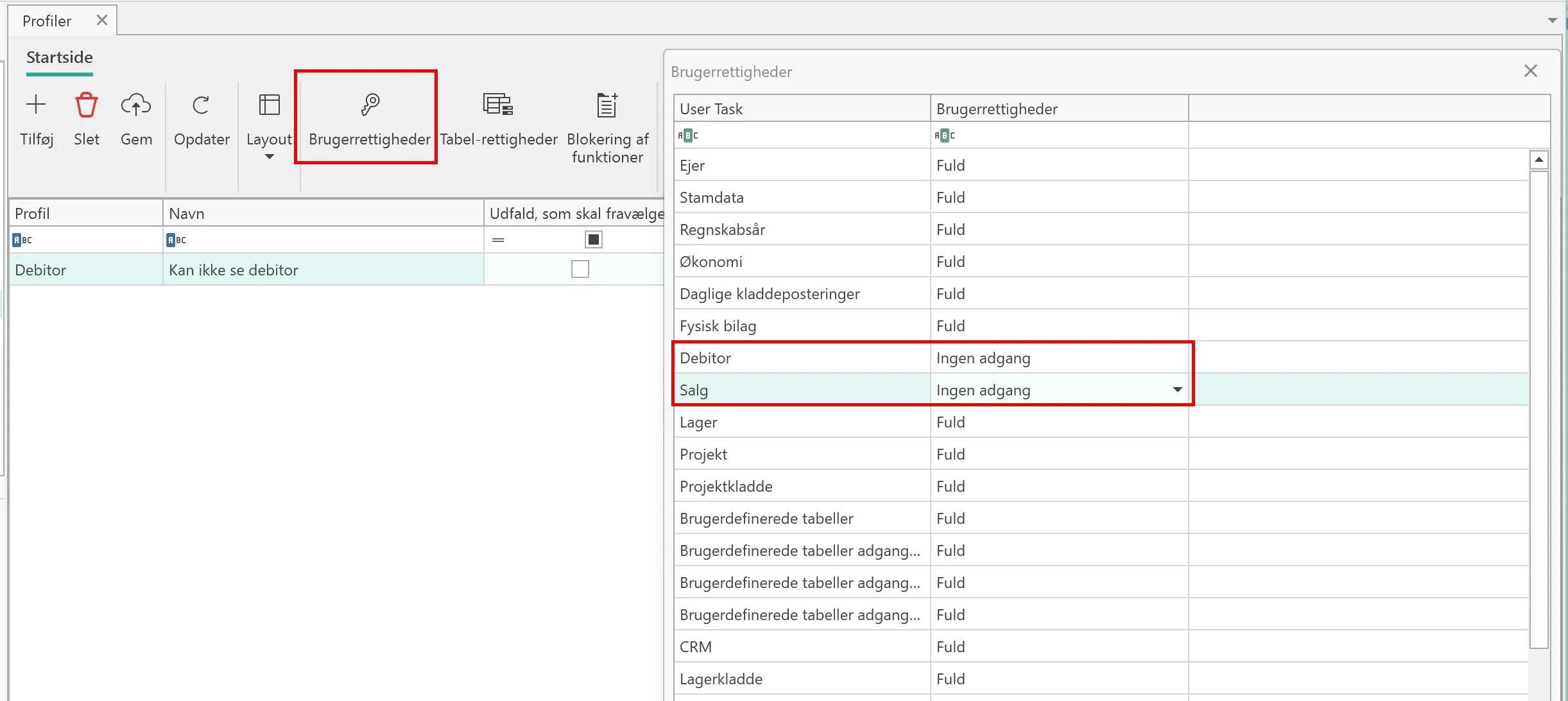
Based on the “Debtor” profile, a profile here is set up so that no users associated with this profile can see the debtor.
The setup is thus set up under User permissions.
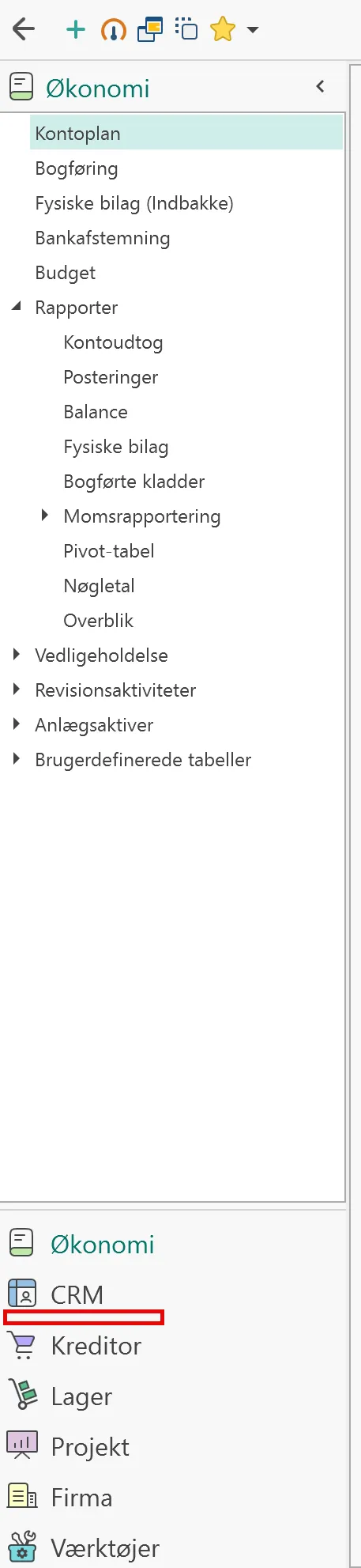
When the user then logs in, the user will not see “Debtor” in the menu.
Management of table rights on profiles.
If you set the profile “Vendor” as the starting point, this profile is set up so that the profile cannot see Vendors.
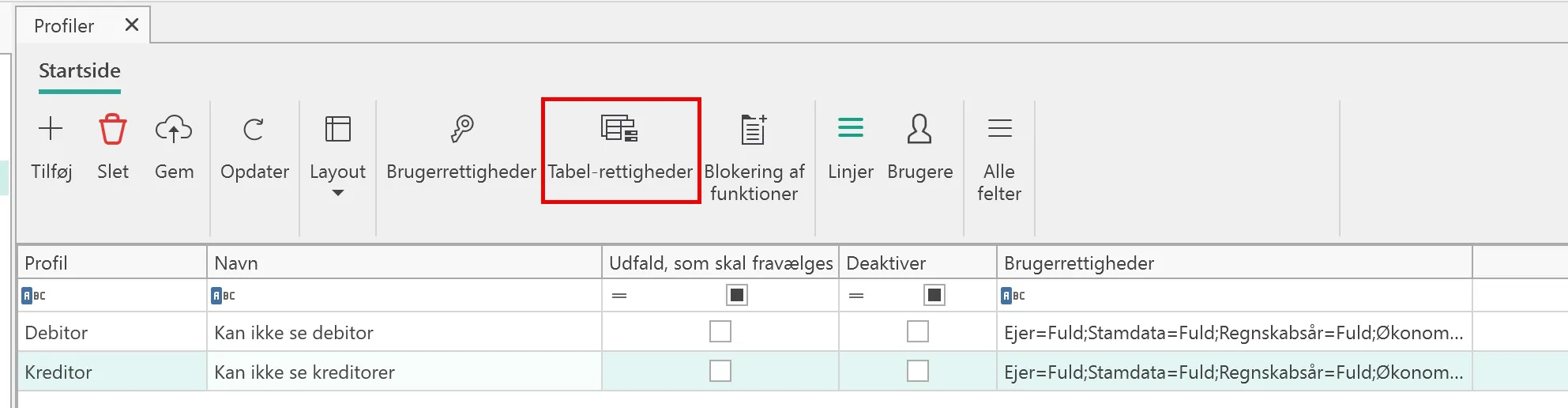
Tap on “Table rights”
NOTE: A Line cannot be corrected. The line must be deleted and a new one created.
Add the Tables to make special rights for. Here “Vendor”
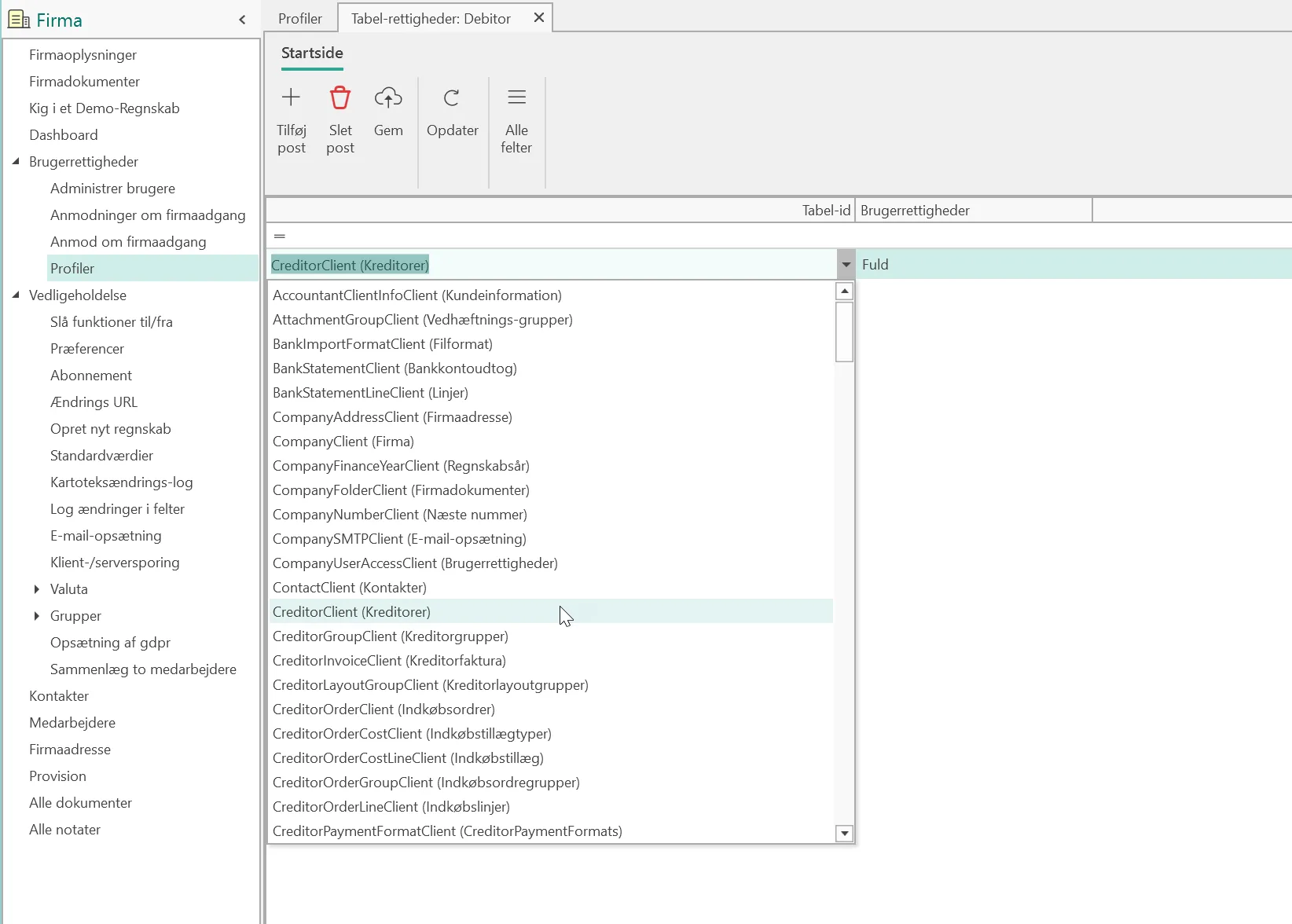
Select which rights the profile’s Users should have on the “Vendors table”. Select No access here.
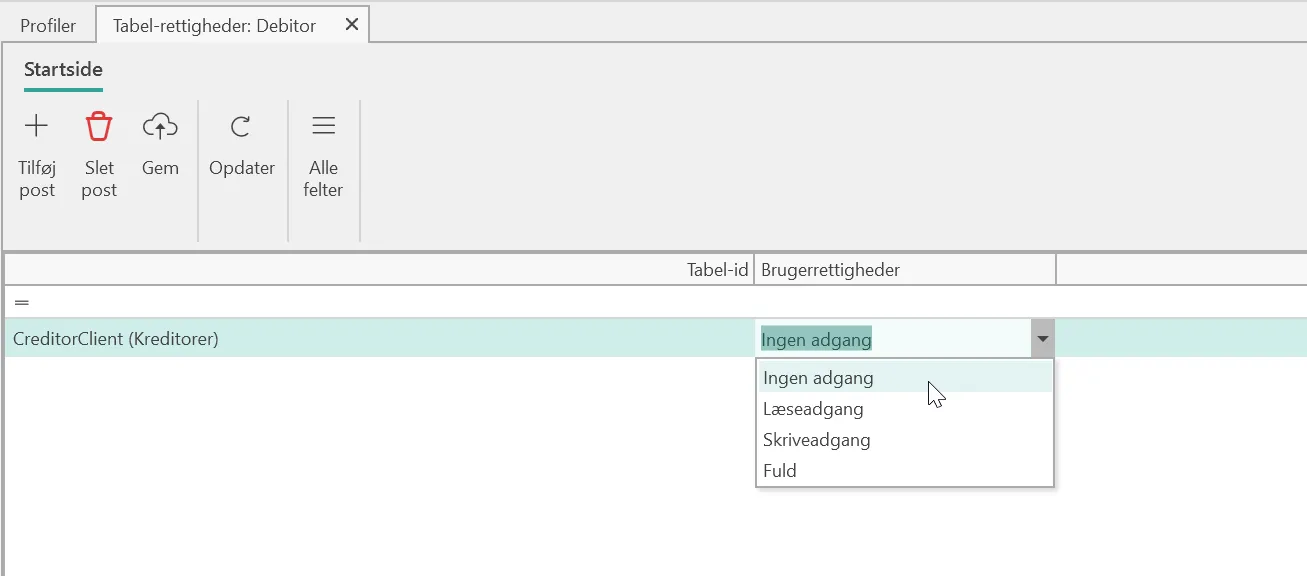
Here you can see that users of the “Creditor” profile can no longer see creditors.
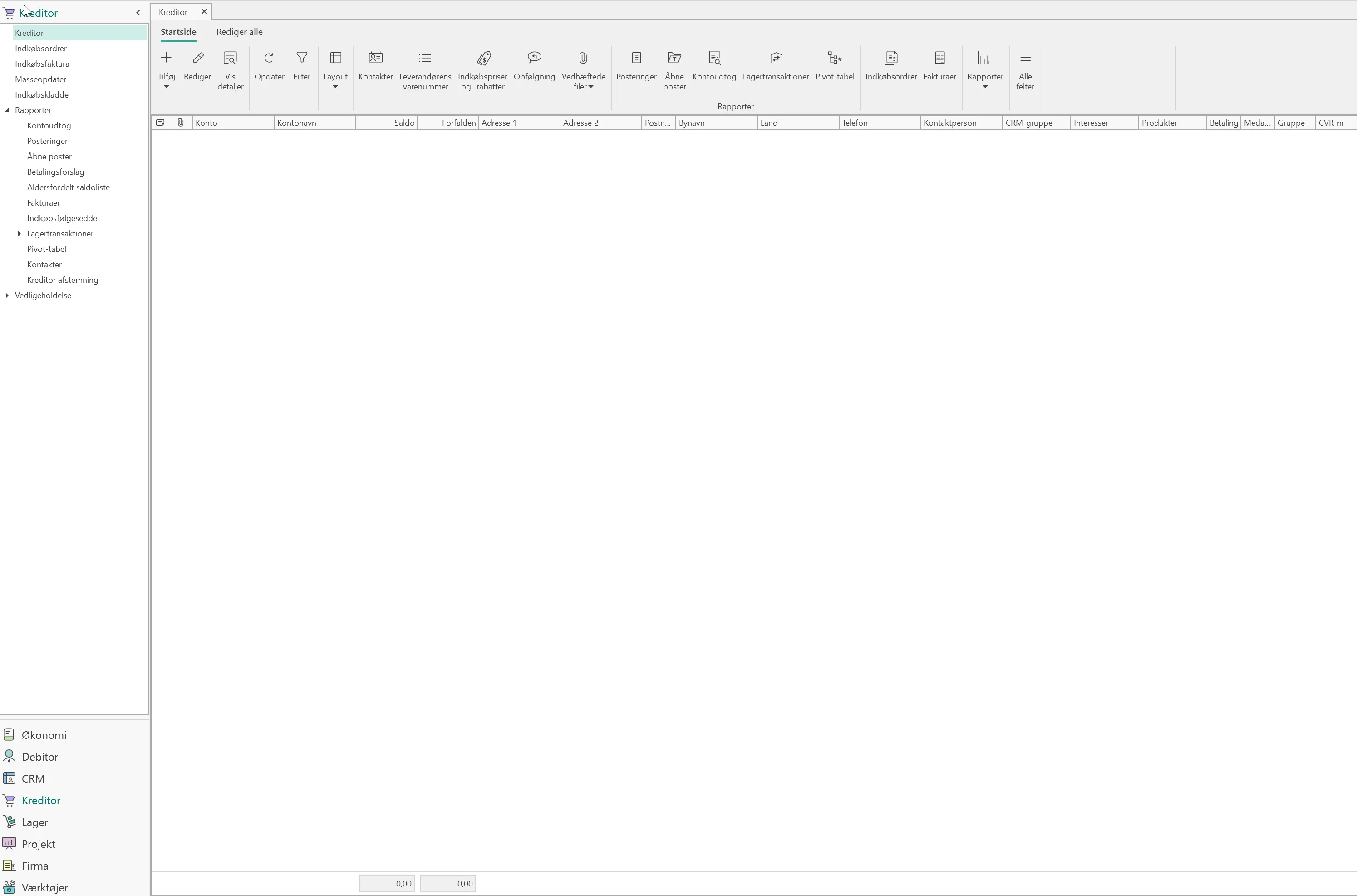
Controlling Field Access on Profiles.
Version-94 It is possible to set fields in the individual tables so that they are hidden or displayed with read rights for the individual user. The setup applies in all screens where the field can normally be seen. The setup is selected on “Field access”
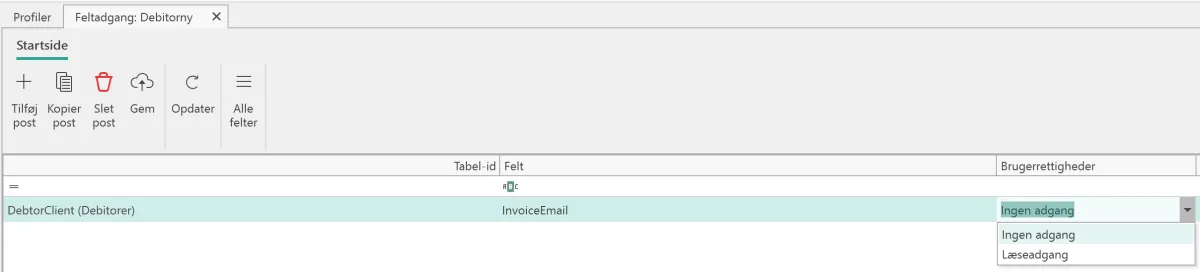
Functions are shown here on the Customer screen. This is the top of the default screen.
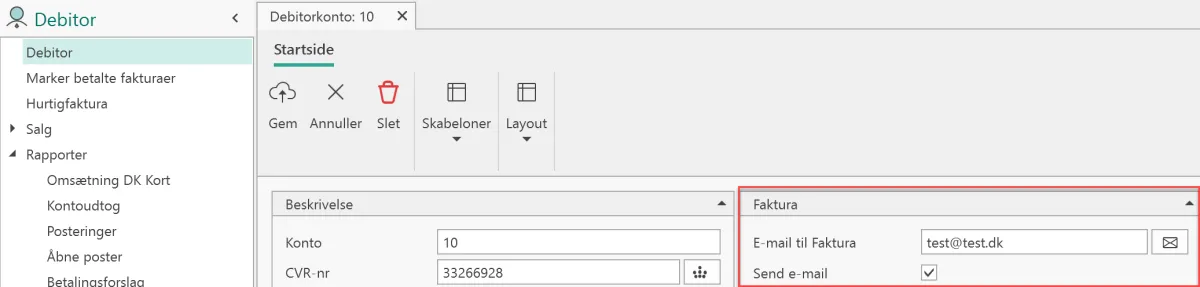
Then it is set up on the profile that the field “Email to Invoices” must not be shown on a user profile. User permissions are set to “No access”
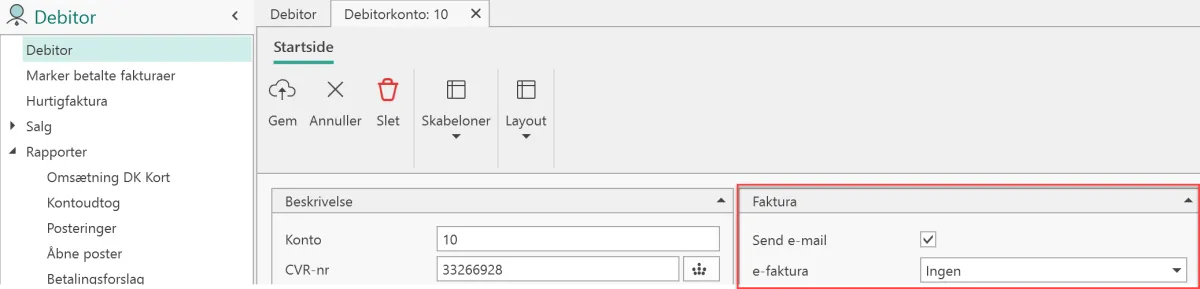
If you open the Customer screen again, the “Email to Invoices” field will be displayed for the user.
Block functions on Profiles.
Features can be blocked on a profile.
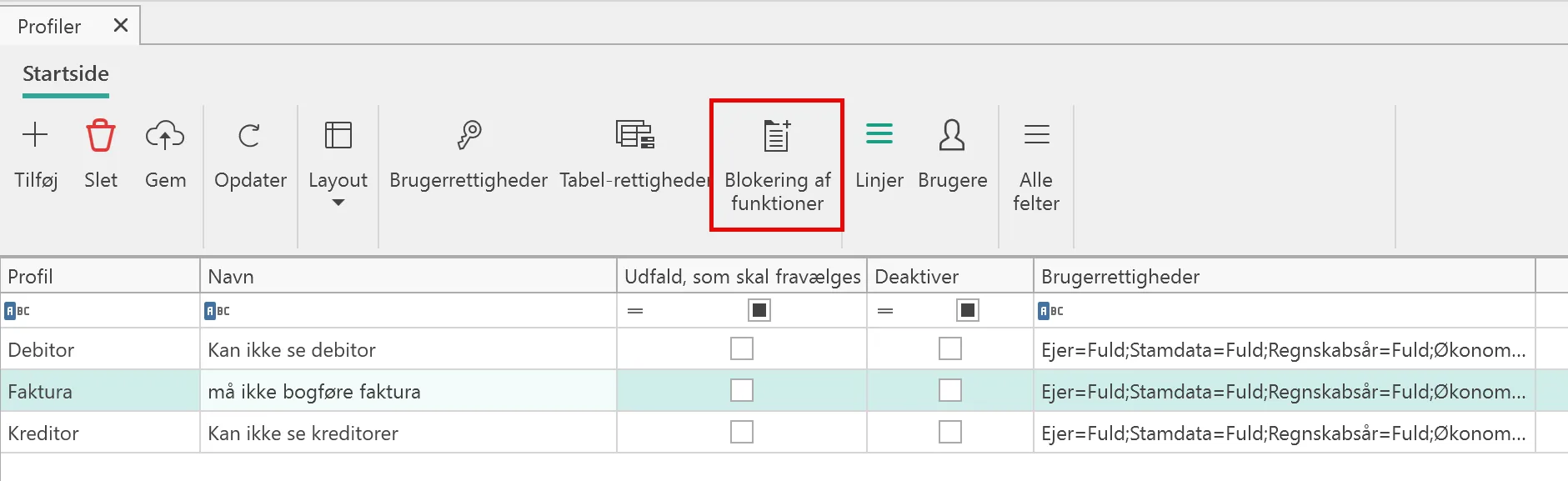
Select “Block functions” in the Menus.
Insert the functions to be blocked in the user’s profiles.
To find the desired function, run the menu item and then go to Client/Server tracking and see the way it was called.
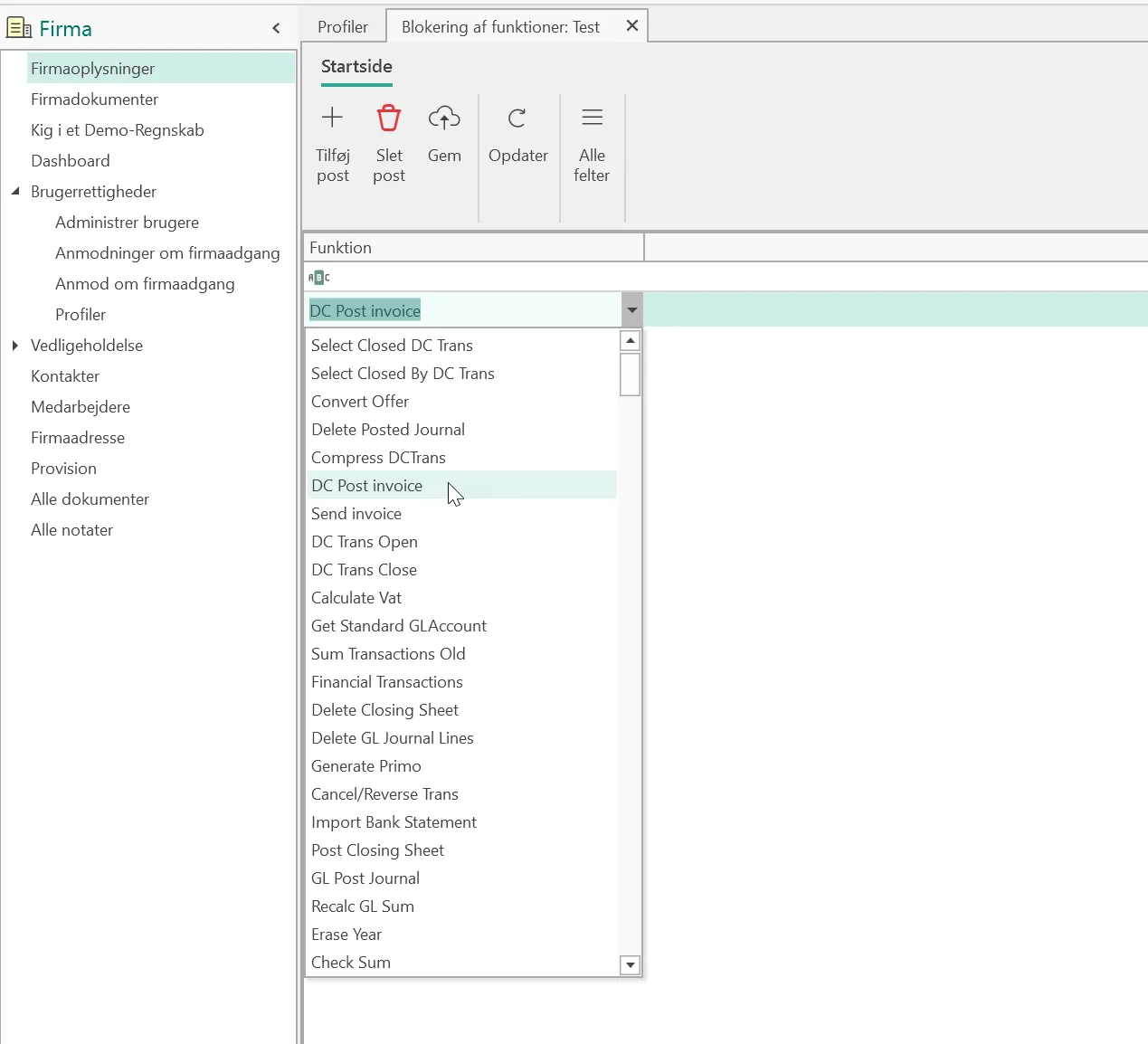
Select “DC Record Invoice” here. Users of the Profiles can now not post an Invoice.
Multiple blockers can be inserted.
NOTE: A Line cannot be corrected. The line must be deleted and a new one created.
Block reports.
Under this menu item, a profile can ensure that certain dashboards and/or reports from the report generator cannot be viewed by users belonging to the profile.
Enter the Names of Reports and/or Dashboards that should not be displayed.
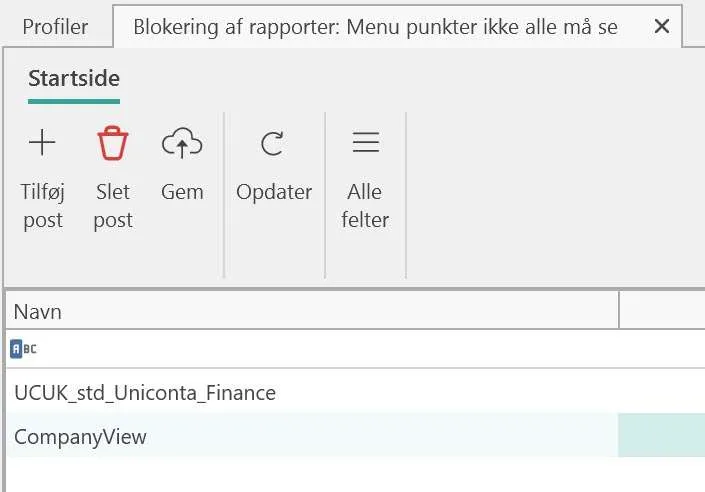
Lines
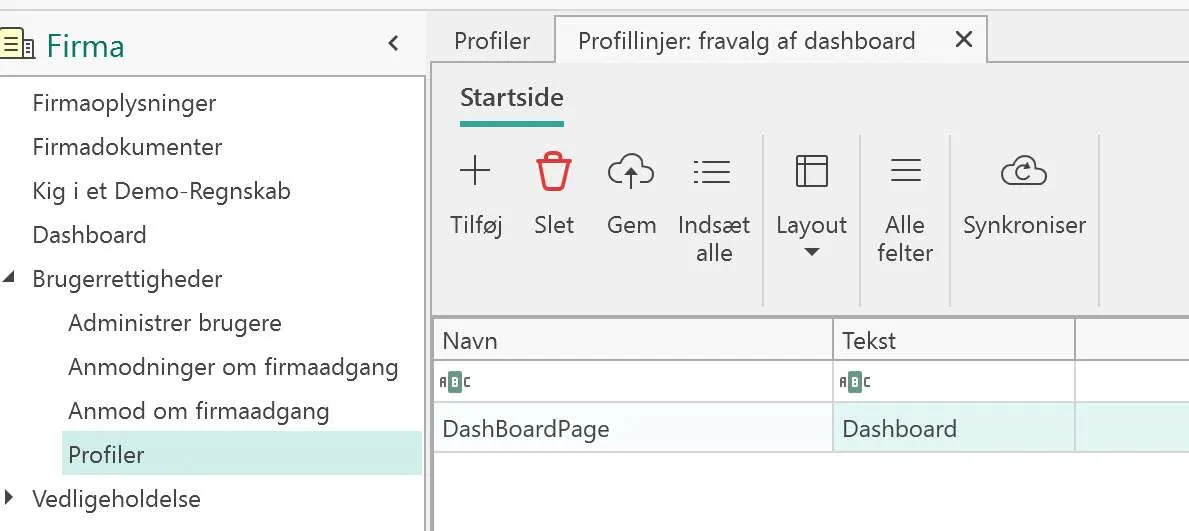
Add the screens under “Lines” that should be viewable or deselectable.
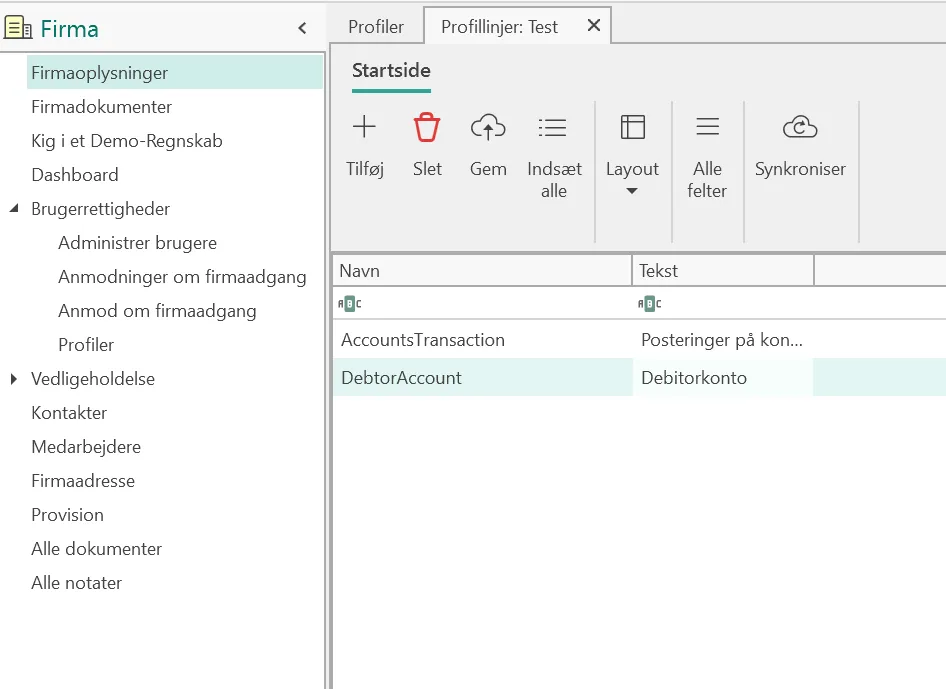
For example, the line below, together with the check mark by Udfald, which must be deselected, will mean that Connected Users will not be able to access all Dashboards, only those in the Menus under the individual modules.
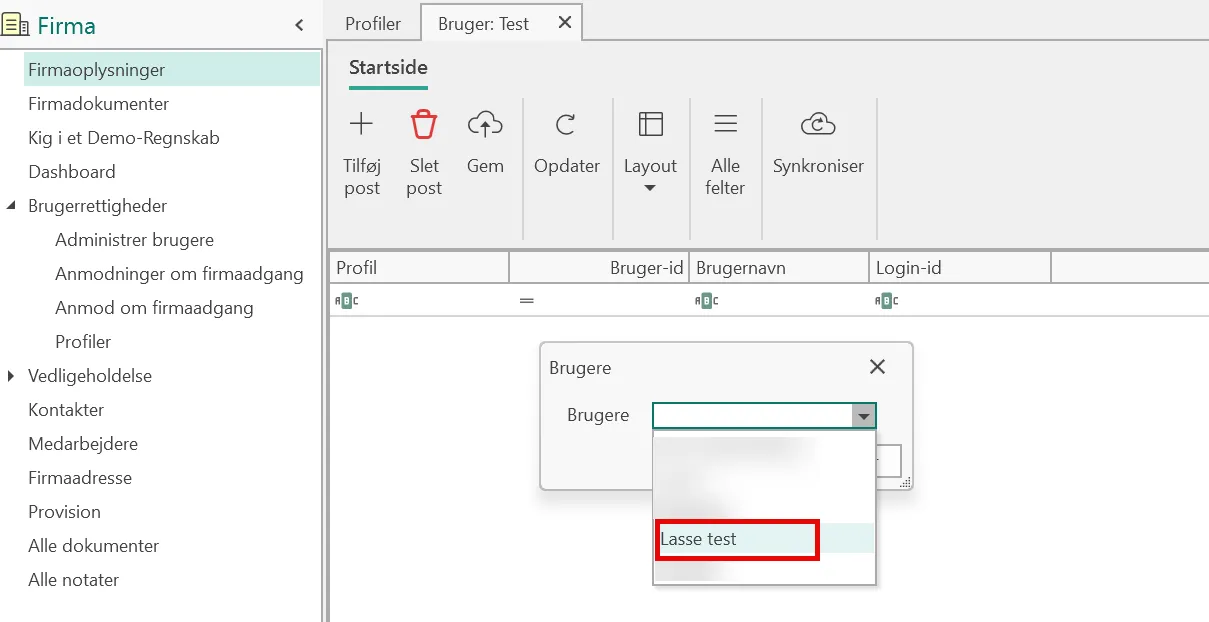
Users
Under Users, add the users who should have access to the profile.
The selected users are added to the list.
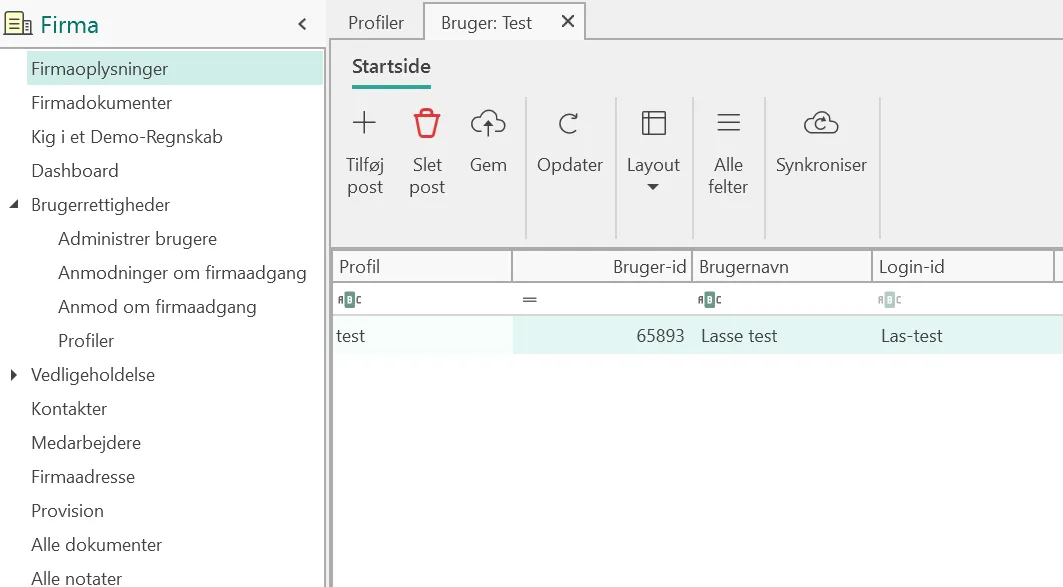
When logging in with this user, only the selected screens and rights are shown.


