Sales invoices
This report provides an overview of which invoices have been sent to all debtors.
Note that cash sales are represented by a check mark in the “Cash” column. This reminds the user that no entries have been created in the debtor status account. Read more here.
Buttons on the ribbon

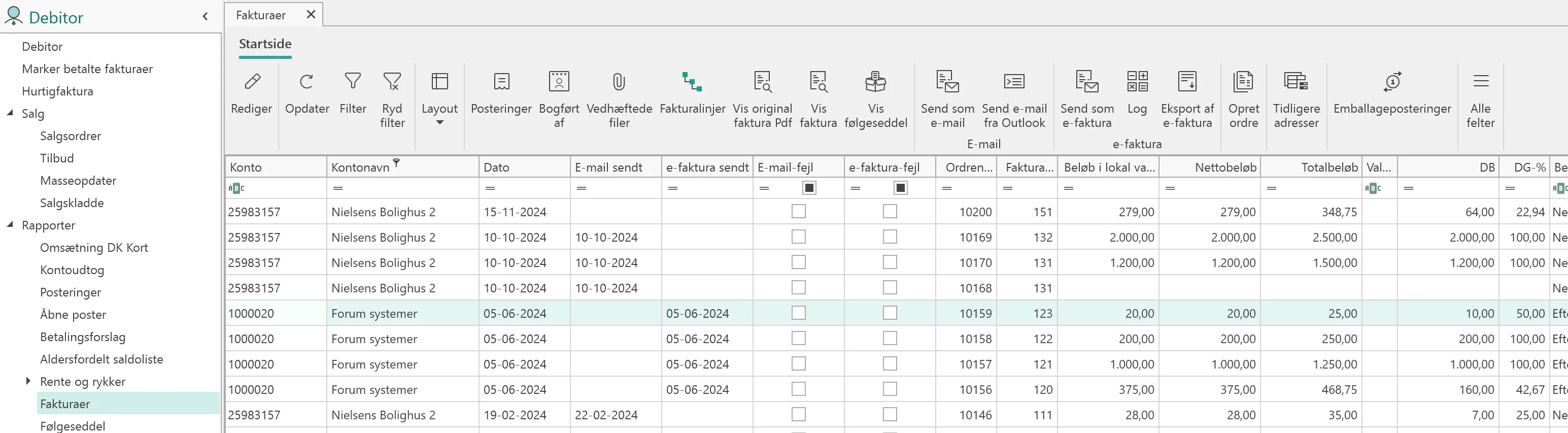
Below is a description of the buttons on the ribbon
| Button | Button description |
| Edit | Press the button to edit the invoice you are standing on. Here you can edit the order group, payment, delivery fields, etc. ATTENTION! Changes to e.g. due date are not reflected in Open transactions. Open transactions must be edited manually. Read more here… |
| Refresh | Tap the button to update all information and corrections. |
| Filter | Use the drop down drop down list to select what you want to filter and sort by. Read more about filter here… |
| Clear Filter | Resets the filtering. |
| Layout | You have the option to save, delete, edit or retrieve a saved layout. Described under General functions. Read more about layouts here… |
| Line items | All postings on the invoice are shown here. |
| Posted by | Shows an overview of who posted the invoice and when. |
| Attached files | Here you can view any attached memo or document. |
| Invoice lines | Shows invoice lines on the selected invoice. |
| View original invoice PDF | Displays the original invoice, saved in Uniconta, as a PDF. The first time you invoice, an invoice PDF is created. It is saved on the server, and all calls to view or send the PDF will now take the saved version. The new accounting law stipulates that we must save the original PDF that is sent to the customer. |
| View invoice | Displays a printout of the entire invoice. |
| Show Delivery note | Displays a delivery note based on invoices. Uniconta can also be used with separate delivery notes. Read more here… |
| Send as email | Sends directly to the email address that you have set up for your debtors. If you get the error: “Operator blocked” when clicking “Sent as email”, it means that the “Block send email” box is checked under Company/Company details. Read more here… |
| Send email from Outlook | Opens Outlook from where the email text and recipient can be edited. |
| Send as e-invoice | Sends the selected invoices through Uniconta’s server. This menu item is not visible if you have deactivated NemHandel under preferences. |
| Log | Log of sent e-invoices and direct debits via Betalingsservice |
| Exporting e-invoices | Exports the selected invoices in OIOUBL format. |
| Create order | Here you can create a new sales order, or send a quote, or reverse the sign if you need to create a credit note. Read more here… |
| Previous addresses | Here you can view and edit previous addresses on the debtor. Read more at the bottom of this article |
| All fields | Here you can see the content of all fields in the line you are standing on. |
Fields on the invoice list
Description of the most important fields on the invoice overview.
| Field name | Field Description |
| Date of invoice | Invoice date |
| Email sent | Date the invoice was sent from Uniconta, via email |
| e-invoice sent | Date the invoice was sent from Uniconta, via electronic mail, OIOUBL or Peppol |
| Direct Debit sent | Date the invoice was collected via one of the Direct Debit solutions i.e. Betalingsservice, Leverandørservice, SEPA Direct Debit or Claims (Iceland) |
| Email errors | If there is a check mark in this field, the Invoices has not been sent from Uniconta. Look in Error log to see what the cause might be. Read more here… |
| e-invoice errors | If there is a check mark in this field, the Invoices has not been sent via the electronic setup from Uniconta. Look in Log to see what the reason might be. Read more here… |
| Approve | The Approves field can be inserted using the Layout/Other fields button. The field is filled in with the employee who approved the order. |
| Date (Credit note) | Version-94 If the credit note is generated from an invoice, the invoice date will be displayed. |
| Amount incl. VAT | Version-94 If the Customer is set up to use Prices incl. VAT, you will be able to see the Amount incl. VAT in this field. |
Transactions or invoice lines
By clicking on the Transactions button, you can view all Transactions on the individual Invoices.

You can also choose to view invoice lines by clicking on invoice lines.

Here you can also edit the storage location and batch or serial number, as well as the variant and add or edit notes.
Note! Batch or serial numbers can be removed from here. If you want to replace/add a batch or serial number, go to the stock records and find the current stock record, after which you can perform the exercise.
If there are physical vouchers attached, you can click the Physical vouchers button and view them, or you can choose to view the original invoice.
ATTENTION! Remember that the cost price on the invoice line is only updated to the cost price model after you have recalculated cost prices manually.
Read more here.
Customs number
The invoice has a customs number that can be used for import.
It can also be added via the report generator on the printouts.
Previous addresses
Under Debtor/Reports/Invoices you can see a list of previous addresses registered on the debtor.

When reprinting invoices, Uniconta then looks in that directory to see if there is an address after the invoice date.
GLN number has been added to previous addresses.
You can create, edit and delete in the directory yourself. At the same time, the old address is automatically inserted when you edit the address in the debtor directory itself.
This makes it possible to decide whether you want the new address or the old address on old invoices, simply by maintaining this directory.
Note! If you change an address on the current date and want to ship with the new data the same day, you must change the field Changed to the day before, as the date of the change must be older than the current date.
Print/export multiple invoices
All invoices from the invoice archive can be exported and/or printed in one go like this:
- Filter on the invoices you want to export, e.g. by filtering on dates or similar
- Press Ctrl+A to select all invoices in the overview
- Select the View invoice button on the ribbon. This creates an on-screen printout of the selected invoices
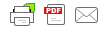
- From the printout on the screen, you can choose to print the invoices at the top by selecting one of the printer icons.
Alternatively, you can select the arrow to the left of the envelope and choose, for example, to save the printout as a PDF.


