
Loading
Uniconta
  • Search
  • Uniconta
    • Functions
      • General ledger
      • Orders & Purchase
      • Inventory & Logistics
      • Project
      • Production
      • Dashboard
      • Business Rules
      • ODATA ikonCustomisation
      • See all →
    • Apps
      • Invoice App Create Invoices
      • Upload App Submit reciepts & expenses
      • Assistant App Project Management
      • Work App Time Tracking
      • Authenticator App Two-Factor Authentication
    • Integrations
      • Add-on Store
    • Download & Login
      • Download Uniconta
      • Web Login
  • Developers
    • Build & Integrate
      • Get API Key
      • Download for Developers
      • Documentation
    • Resources & Code
      • Samples
      • Add-on solutions and users
    • Partner Ecosystem
      • Become an integration partner
      • Partner Portal
  • Insights
    • News
      • Latest News
      • Release Notes
      • Customer Stories
    • Get started
      • Try Uniconta
      • Book a Demo
  • Contact
  • Get Uniconta
  • Contact us
  • Find a reseller
Free trial signup

Unipedia

  • Get started
  • Chart of accounts
  • Customer
  • Vendor
  • Tools
  • Project
  • Purchase
  • General
  • CRM
  • Inventory
  • Company
  • Reports Reports under Project
  • Tools
  • Report generator
  • User-defined fields User-defined fields under Tools
  • User-defined tables User-defined tables under Tools
  • WebPortal
  • Data accesses
  • UC Menu – Addon store

Setup of Uniconta Work users

4,956 views 28 May 2024 15 July 2026 4 minutes
Print Friendly, PDF & Email

Learn more about:

  • Layouts - global
  • Filter/Clear Filter
  • Templates
  • How to search in Uniconta
  • Attaching documents and notes
July 15th, 2026
Anyone who already pays for a user for Uniconta can use the Uniconta Work app for time tracking for free.
This includes:
  • Standard users
  • Univisor users
  • Invoice users
  • Project timesheet users

Follow this guide to set up your user correctly so you can use Uniconta Work for time tracking.

Employees without Uniconta access who only need to track time via Work App

We have added a new user type called work app-user. This user type only has access via the Uniconta Work app.
Follow this guide to add Work App users.

Setup of Uniconta Work for existing Uniconta users

Follow this guide if you already have a user with Uniconta access and want to use Work App for time tracking.

Step 1: Set default company on your user

To use Uniconta Work for time tracking, make sure your user has a default company. Follow these steps:

    • Click the company icon located to the left of the company name at the top of the Uniconta window.
      The company icon looks like this:
  • In the window that opens, check the “Default” box:
Company

Company

You have now set up a default company for your user.

Step 2: Assign an employee to the user

To ensure that your user can use the Uniconta Work app correctly, you need to assign an employee to the user. Follow these steps:
  • Go to Company in the left menu.
  • Select User permissions.
  • Click Manage users.
  • Find and select the user you want to assign an employee to.
  • Click Assign employee:
Manage users column

Manage users column

You now have two options:
  1. Select an already created employee from the list.
  2. Create a new employee:
      • Click Create new employee.
      • Fill in the Number field. This is the only mandatory field. The rest is optional.
When creating a new employee, the “Number” field is the only one you need to fill in, the rest is optional.
Screenshot employee column
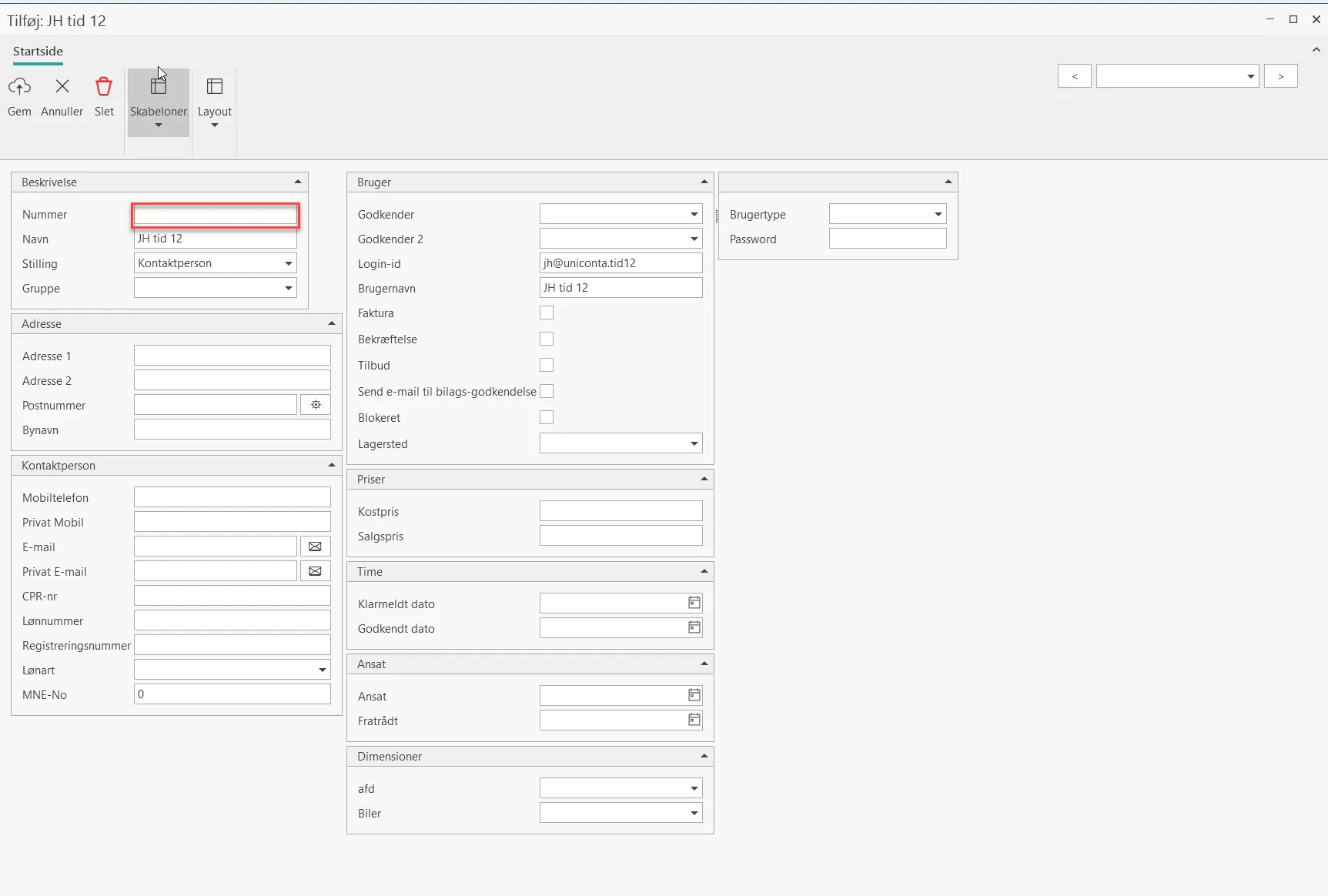
Screenshot employee column

Screenshot of JH time column

Screenshot of JH time column

You have now assigned an employee to your user, and you can start using the Uniconta Work app for time tracking. If you have questions or need further help, you can contact Uniconta support.

Add new Work app users

If you have employees who only need access to the Work app for time tracking, and do not already have a Uniconta user, follow this guide:Step 1: Add employees

  • Click Company in the left menu.
  • Select Manage users.
  • Click Add user.
  • Select Work app-user.
Work app-user column

Work app-user column

  • Enter the employee’s name, email and user name.
  • Click Save.
Screenshot of plus user

Screenshot of plus user

  • Click Assign employee and select Create new employee
Employee column

Employee column

  • Fill in the Number field only. The rest is optional.
Screenshot add column

Screenshot add column

  • Click Save.

The user is now set up, and the employee can start using the Uniconta Work app for time tracking.

Step 2: Employee downloads Uniconta Work

  • The employee automatically receives an email with login details and a download link for Uniconta Work.
  • The employee enters their default week and can now simply register deviations.

You now comply with the law and are ready to use Uniconta Work for time tracking!

Guide to using Uniconta Work

Your employees can read our guide to registering deviations and working hours in Uniconta Work here.

If you need further help, you are welcome to contact our support.

  • Was this Helpful ?
  • YesNo
Categories: APP, Unipedia
Home » Unipedia » Setup of Uniconta Work users

Get in touch with us

Uniconta

  • Uniconta
  • Modules
  • Downloads
  • Free trial signup
  • Subscription Terms
  • Privacy Policy
  • System Status

PARTNER

  • Resellers
  • For Developers
  • Uniconta API key application
  • Uniconta Partner info

Info

  • News
  • Updates
  • Customer cases
  • Video
  • IT Security
  • Backup procedure – global
  • About us

Support

  • Unipedia
  • API information
  • Contacts
© Uniconta  2026

facebook linkedin youtube

  • Visit a Country Site
    • Dansk
    • Uniconta GermanyDeutsch
    • Eesti
    • Uniconta GermanyÍslenska
    • Lietuva
    • Uniconta NetherlandsNederlands
    • Norsk
    • English